
Fix WordPress Admin Login Issue – Have trouble login your WordPress admin dashboard? To fix follow the terms we mention below.
WordPress is the most used CMS for website development in the world today. Because it is user-friendly, no coding knowledge is required, and there are many free plugins available.

WordPress Admin Login Issue
However, there are minor drawbacks to this, one of which is the WordPress Admin Login issue which is common to everyone. First of all, don’t get nervous and stay calm.
Check out when you free – World’s first automatic and online HTML to WordPress converter
Why is WordPress Admin Login issue important?
If you can’t access your site’s WordPress admin, you won’t be able to make changes or fix bugs on your website. So this is a problem that needs to be addressed.
The reasons can be anything. A hacker may have taken control of your site. You may have installed the wrong theme or plugin. You may add some code manually.
This issue is very common with WordPress and we have helped many customers regain access to their WordPress admin. Follow the rules that we give one by one.
I suggest you to take File Manager and Database backup before starting this process.
8 Simple Ways to fix the WordPress Site Admin Login Issue
- Lost or Forgotten Password
- Check Database Credentials Changed
- Clear Cache and Cookies from Browsers
- Plugins Interference
- Error Logs
- Disable Theme
- Corrupted wp-login File
- Corrupted .htaccess File
1. Lost or Forgotten Password
If you have lost or forgotten your password in the admin dashboard, login to CPanel and click on phpMyAdmin.

select table from database
Now phpMyAdmin Dashboard will open. You need to click on the database for the domain.

Reset password in database
Click on the wp_users table in the database. Then click Edit and a window will open. There you have to type your new password and select MD5 in varchar. Scroll down and click OK.
Try opening WordPress admin with your new password. To know more about this, read the article How to Recover Lost or Forgotten Password For WordPress Admin.
2. Check Database Credentials Changed
Secondly, we have to check whether the details of our database are properly configured.
Let’s see how it goes. Your database credentials will be synchronized in wp-config.php in File Manager. Let’s see if there is any change in it. How to get there?
Login cPanel and click file manager and go inside. Inside public_html is the primary domain. Addon domains are contiguous.

Open wp-config file
You have to click on the folder in the domain name for which domain you want to check. After clicking there will be wp-config.php file. Then, right click the wp-config.php and edit.
Simply, cPanel > File manager > public_html or Addon domain > wp-config.php > Right click > Edit

Check database credentials
There will be your database name, user name and password. Check if they are all correct. If there is any change please correct it and save.
After entering the right information, now login to WordPress admin and check.
3. Clear Cache and Cookies from Browsers
Sometimes cache and cookies in your browsers may be corrupted or wrong information and credentials may be saved. It will suggest the wrong information you saved every time you login. This can cause this problem.

Clear cache and cookies in Chrome
How to clear cache & cookies In Chrome
- On your computer, open Chrome.
- At the top right, click three dots vertically or press (ctrl+shift+del)
- Click More tools and then Clear browsing data.
- At the top, choose a time range. To delete everything, select All time.
- Next to “Cookies and other site data” and “Cached images and files,” check the boxes.
Click Clear data. in details
How to clear cache & cookies In Mozilla
- Click the menu button
 and select .
 - Select the panel and go to the Cookies and Site Data section.
- Tick the pop-up shows ‘Cookies and Site Data’ and ‘Cached Web content’
- Click the button. The Clear Data dialog will appear.
 and select
 4. Plugins Interference
Even if the plugins you used for your website are out of date or corrupted, problems like this can occur.
First thing you need to do is rename your plugin folder. For example, change it to plungin_disable instead of plugins and login WordPress admin. If it is logged in properly, try the following steps to find out which plugin is the problem.
The first and foremost thing is to check the recently installed plugin. That’s where the potential for trouble lies.

Plugins folder
Login to cPanel and go to File manager and click on public_html if the issue in yours primary domain. If you have an issue on addon domain then click on the folder in your domain name.

Installed plugins
After clicking, sub folder will open below it. Click on wp-content in it. Then click on the plugins folder. Inside the folder all the plugins you have installed for the website will be listed.
Cpanel > File Manager >Public_html > wp-content > Plugins
Now you have recently deleted and login to WordPress dashboard. If the solution doesn’t work, try deleting each plugin one by one and logging into WP admin.
Definitely, if any plugin is corrupt, keep it aside. After logging in to WordPress, reinstall the corrupted plugin newly and work on it.
5. Error Logs
If you still can’t find the problem, you can find it using the error log method.
As mentioned earlier click on cPanel > public_domain or domain folder with problem.
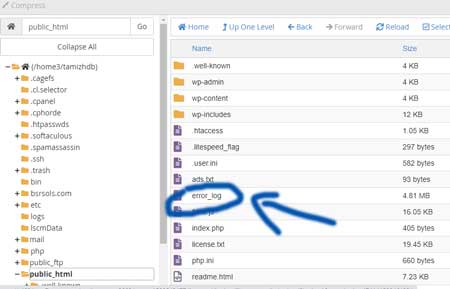
error log file
Now there will be error_log inside the domain folder. Right click and view it. There is a lot of information, if you scroll down and come to the end, you will clearly know in which part there is an error.
It can be anything like plugin, theme, image or code. Immediately take note of it and go to the file manager and delete the files or codes showing the error. Now login to WP admin and try.
6. Disable Theme

Disable Theme
Similarly, try changing the theme name as you did for the plugin.
Go to cPanel > File Manager > Domain > wp-content > Theme and rename your present theme. After doing this, WordPress will automatically change to the default theme (twenty twenty two or something other default theme).
After changing it, login to the WordPress dashboard. Install your present theme newly

delete theme
WordPress > Appearance > Themes > Delete
similarly, on the top add New to install new theme WordPress > Appearance > Themes > Add New > Your Theme
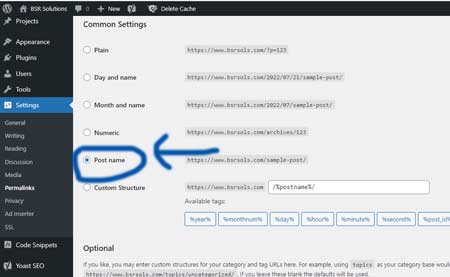
permalink post name
After installing the new theme, go to WordPress settings and click on permalinks. You have to click on save changes button at bottom of the page without making any changes there.
7. Corrupted wp-login File

wordpress latest version download
Sometimes wp-login is corrupt but problems like this can occur. This problem occurs because WordPress is not updated to the latest version.
So you download the new latest wordpress file from the given link. Extract the folder and copy the wp-login.php file in the downloaded folder and replace the wp-login.php of the live website.
cPanel > File Manager > Domain >wp-login.php >replace new wp-login.php
8. Corrupted .htaccess File
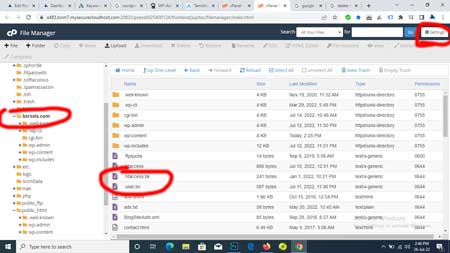
htaccess file
A corrupt .htaccess file can also cause these problems. So you need to create a new .htaccess file. To do this, please download the .htaccess file inside cPanel and keep it in the local folder. There is no available to see .htaccess file then go to > settings(right top) > show hidden files. It will appear now.
After downloading, delete the .htaccess file from the live server.
Method 1 – If you are able to login into WordPress, as I mentioned earlier goto settings > permalinks > select post name(default) > click save changes.
In this way the .htaccess file is automatically generated on the server.
Method 2 – If you are unable to login through WordPress admin, please go to cPanel > File Manager > public_domain > and re-upload the downloaded .htaccess file.
Right click and Edit then remove the old code and paste the code I have given below and click the save changes button (right top).
.htaccess > right click > edit > remove old code and paste new code.
# BEGIN WordPress
RewriteEngine On
RewriteRule .* – [E=HTTP_AUTHORIZATION:%{HTTP:Authorization}]
RewriteBase /
RewriteRule ^index\.php$ – [L]
RewriteCond %{REQUEST_FILENAME} !-f
RewriteCond %{REQUEST_FILENAME} !-d
RewriteRule . /index.php [L]
# END WordPress
Read More
- Check out when you free – World’s first automatic and online HTML to WordPress converter
- The Ultimate Guide to Choosing the Best Cloud Hosting for WordPress
- Disable Right Click WordPress without Plugin
- Technolgy Related Articles
- Blogging Articles