
In this post, I will explain how to update Google Chrome Latest Version Directly without Reinstalling it. Google Chrome web browser is used by billions of users. Google has issued a notice to its users to update their web browsers immediately to avoid cyber attacks.
Update Google Chrome
Google recently released a new update. If you don’t update your Google Chrome web browser immediately, there is a chance that you will be directly vulnerable to a web attack. So it is better to update for safe browsing. The Performance will be easier and faster after updating.
Google Chrome Bug
Chrome discovered a bug in its functionality before the last update. Google discovered that this was a dangerous bug that could easily allow third parties to run the file reader package.
So if Google Chrome asks you to update it, do it immediately.
Some people, simply download and install a new Chrome app when it asks for an update. There is no need to do so.
Update Google Chrome on Computer/Laptop
Google Chrome automatically updates when a new version of the browser is available on your device. With these updates, you may notice that your browser looks different.
Make sure your Chrome is running on a secure new update. If your Google Chrome is running on this version of the app, it means that the bugs have been removed.
Do the same immediately To make sure that your information is not vulnerable to cyber attacks, click on go to Help and click on About Google Chrome.
Check Google Chrome Update is Available
1. On your computer > open Chrome.
At the top right, look at three dots horizontally and click on it

Google chrome update available
2. If an update is pending, the icon will be colored:
- Green: An update was released less than 2 days ago.
- Orange: An update was released about 4 days ago.
- Red: An update was released at least a week ago.
To update Google Chrome Directly
1. Open the Google Chrome browser on your computer.
On your computer > open Chrome.
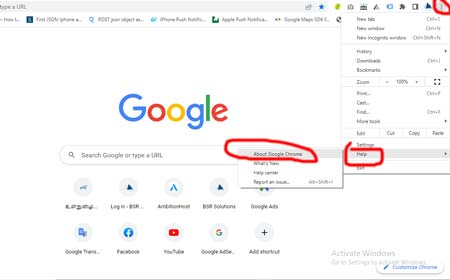
Google Chrome help
2. At the top right, click on the three dots horizontally. Then down
Click Help and then About Google Chrome. That would be

Chrome Automatic updating
You need not do anything. Chrome will start updating automatically.
3. Click Update Google Chrome. Select the option.
Finally, Click Relaunch. Google Chrome is updated completely.
Open Chrome > Help > About Google Chrome > Update > Relaunch
Note: If you can’t find this option in this browser, you’re on the latest version already. Do not make any changes.
To update Google Chrome in Android Version
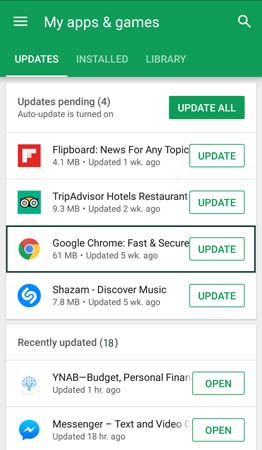
- Open the Play Store app in Google Play.
- At the top right, tap your profile icon
- then, Tap Manage apps & device.
- Under “Updates available,” find Chrome.
- Next to Chrome, tap Update.
To update Google Chrome in iphone Version
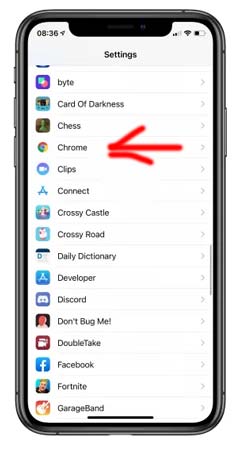
Android chrome update
- On your iPhone or iPad, open the App Store.
- At the top right, tap Profile Profile.
- Scroll down to “Available Updates,” and search for Chrome.
- If Chrome is listed, tap Update to install.
- If asked, enter your Apple ID password. The updates will download and install.
Read More
- How to Remove Google AMP Pages in WordPress without Losing Traffic
- Gmail data limit exceeded 15GB? How to clean?
- How to change PhonePe UPI Pin in Tamil