
Gmail Offline – Google is providing new advanced technical services in its services to attract users. In that order, in this post, we will see how to access Gmail without an Internet connection.
If the daily data on the smartphone runs out, or if there is any disruption in the Wi-Fi connection at home or office, the reality is that many of our lives go ‘offline’.
Even at such a moment, i.e. when there is no internet service, being able to access some online services (for example – offline Google Maps) is always a boon!

Use Gmail Offline
Gmail, which is used by most people for both professional and personal email needs, has introduced the ‘Offline’ feature which enables you to view/read emails and reply to emails without the internet.
We can’t tell you how great of an email service Gmail is. As of last year, more than 1.8 billion people use Gmail, according to the survey.
75 percent of people use Gmail on their mobile phones. And Google’s email service has 18 percent of the email client market share. Keeping all this in mind, the ‘Offline’ feature has been introduced in Gmail.
Read, Reply and Search
According to California-based technology company Mountain View, Gmail users can now read, reply to, and search Gmail messages even when they are not connected to the Internet.
This is undoubtedly a turning-point feature for Google. Because it is helpful not only when there is no internet connection, but also in places with very slow / less internet facilities, especially in remote areas.
How to use Offline Feature in Gmail?
Enabling offline access in Gmail is very easy. Before figuring out how to do that, according to Google, this “offline Gmail” feature only works in the Google Chrome browser and only when browsing in normal mode without Incognito. Remember that.
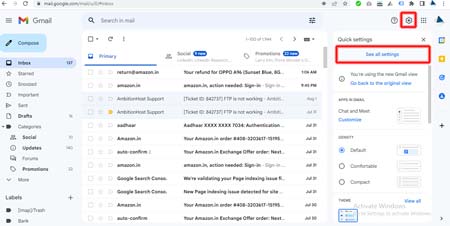
Gmail All Settings
1. To use the offline feature in Gmail, first go to mail.google.com. – Your Inbox
2. Once found, click the Settings or Cogwheel button – Now click on See All Settings
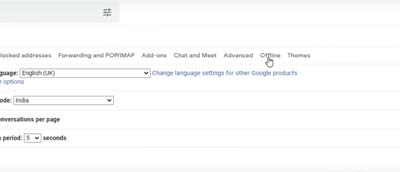
3. After reach the specified page, click on the “Offline tab” available there.
4. Then click on the Enable offline mail checkbox. Once you click on it, Gmail will show you the new Settings.
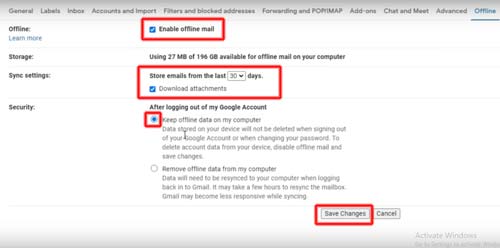
5. You can choose how many days the incoming emails to your Gmail account should be synced.
6. Google will also display the amount of space left on your computer. It also gives you the option to store offline data on your computer or remove all offline data from your computer.
7. Once you’ve chosen whether to keep or remove offline data on the computer, click Save Changes. That’s it; Now your Gmail account will work great even offline.
Read More