
Today we’re going to see how you can quickly create an automatic blog post by using AI. Let’s hope you have a website, and you are publishing blog posts.
Now create content for your blogs. It can take up a lot of your time and effort, Or you’ll have to hire someone to create content for you.
So instead of this, let’s say you want to quickly create your blogs without putting much effort or money. You can do that by reading this article.
We are going to use a tool called ‘anyword’ to create the blog posts. All you need to do is just enter the topic of your blog, and it will automatically create content for your blog.

Create a Automatic Blog Post
So you can use this content to publish posts on your site. It is that easy. Now, this tool will also suggest suitable titles and headings for your blog.
And it will automatically include important keywords in your content, which can help your blog to rank in search results.
We’re going to do 3 steps, Let’s start
Check out when you free – World’s first automatic and online HTML to WordPress converter
The First Step
The first step is to create an account on anyword. This is the site which is going to help us, generate our blog post.
So, create an account on “anyword”, and it will take you to this site you can signup for free. Here you need to enter the email address and password to create an account or you can also use your google account to create an account.
So Once you have created an account in anyword, we can now go to step 2.
Second Step
The Second step which is to generate a blog. So to generate it. Now here you see these are the different items that we can generate.
As we want to generate a blog post, Let’s click ‘Blog’ and click here.
Now here enter the topic name for which you want to create your blog post. I am going to enter ‘Benefits Of Maintaining Healthy Lifestyle’.
Now here you need to enter the category of your blog post. I’m going to search for my category, which is ‘Health’.
I am going to select ‘Healthy Living’. Once you’ve entered your category, Next,
here enter a keyword related to your blog post. You can also enter multiple keywords that are related to your blog post.
Then Click ‘Next’. As soon as you click next, here you will find different types of title, which you can use for your blog post.
Now if you don’t find a title you like, just click ‘generate more’. You will get new titles for your blog post.
Now if you go here, you can see who is more interested in this particular topic, you can have a look at it. Choose the title based on your target audience.
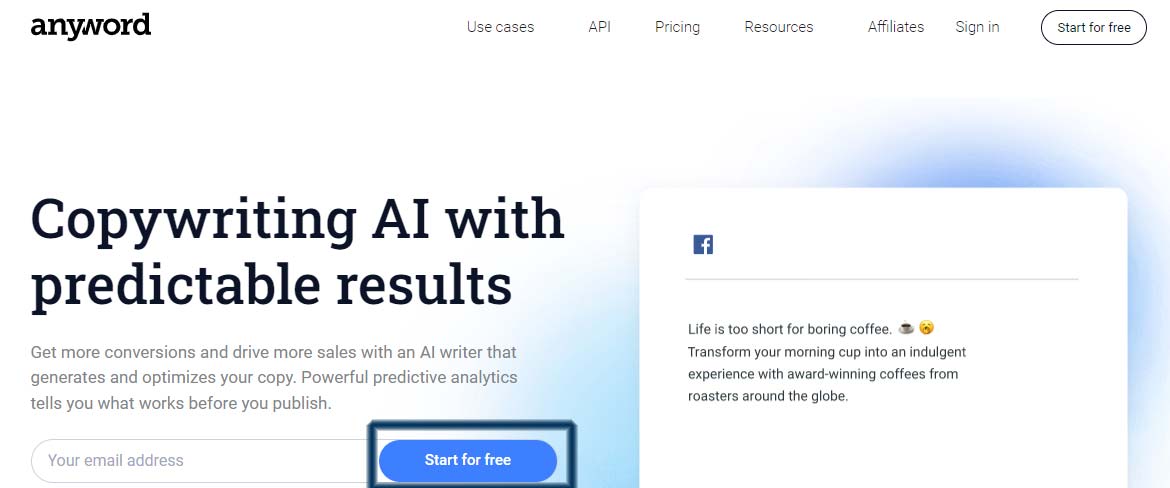
create a blog post by using AI
then click ‘Next’, and here you can see that AI has generated the headings for your blog post.
If you want to add your own topic, just add the topic you want. Then click ‘Next’
After you can see that we have got a few introductions for the blog post. Now you can select the introduction you want.
Once you’re done click ‘continue’ to editor and you will get this page. Now here you need to generate the content for your blog.
We have the heading of our blog post which we saw earlier. Now to generate content for these headings.
First you need to select the length of the content you want in this section. So just click here and select the length you want. select ‘Long’ and click ‘Generate’ as you can see the content has been generated for this topic.
Now if you don’t like this content, click ‘Regenerate’ you can see that, a new content has been generated for our topic.
In the same way you can generate the content to the other sections, once you’re done, you want to add your another section to your blog.
Here click enter the heading you want, then select the length of your content and click ‘Generate’.
As you can see the content has been generated now if you want to add your own content, then type the content you want to add.
So we have now successfully created our blog post now
Once you’ve create it we can now go to step 3.
Step Number 3
Let’s go to our WordPress dashboard and go to posts, then click ‘Add New’.

Add post WordPress
Now to add the blog post. Lets go to this tab Now you need to copy this post and paste it here. Just click here to copy and then paste it here.
Once you have done that, now to make this content easy to read. Let’s change the size of the headings.
Let’s see how you can add a featured image for your blog post. So to add the image
by clicking ‘featured image’ then drag and drop an image from your computer.
Now to make our blog look more attractive, Next let’s see how you can add images to your blog post So to add more relevant images
You will get this image section on your post, Now to add your image. Click ‘upload’ and then drag and drop the image from your computer.
Once you are done, Now to publish this blog post, just click ‘publish’.
And click ‘publish’ again. So now we have published the blog post to check that
Let’s click ‘view post’ you can see. We have now successfully added our blog post on our website.
This is how you can create a blog post using AI.
Read More
- Google Adsense Approval Trick
- How to Move WordPress Site to New Host without Plugin
- Check out when you free – World’s first automatic and online HTML to WordPress converter
- Technolgy Related Articles
- Blogging Articles